
Super Manufacturer have the capability to create tailored rules for Manufacturer accounts. These rules are intended to enhance the personalized experience for manufacturers managing their fleets.
Please Note: Once a rule is activated, it cannot be modified. If you wish to modify any properties, you will need to create a new rule.
To Get Started
- Login to the Super Manufacturer account.
- Go to Settings > General > Manufacturer.
- Double-click on the dealer account for which you want to set the rule.
- Navigate to Rule.

To Set the Rule
- Click on Add New. A new window labeled Manufacturer Rule will open.
- Under the General section
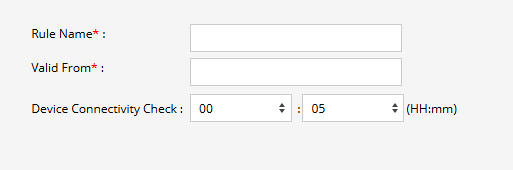
- In the field Rule Name, specify the name of the rule for your reference.
- In the field Description, enter the description for the rule for your reference.
- The Device Connectivity Check time is utilized to monitor the connection between the device and the system. If the system does not receive data for a specified duration, it will indicate the device as "Disconnected" on the live tracking tooltip widget.
- Under the Live Tracking Section
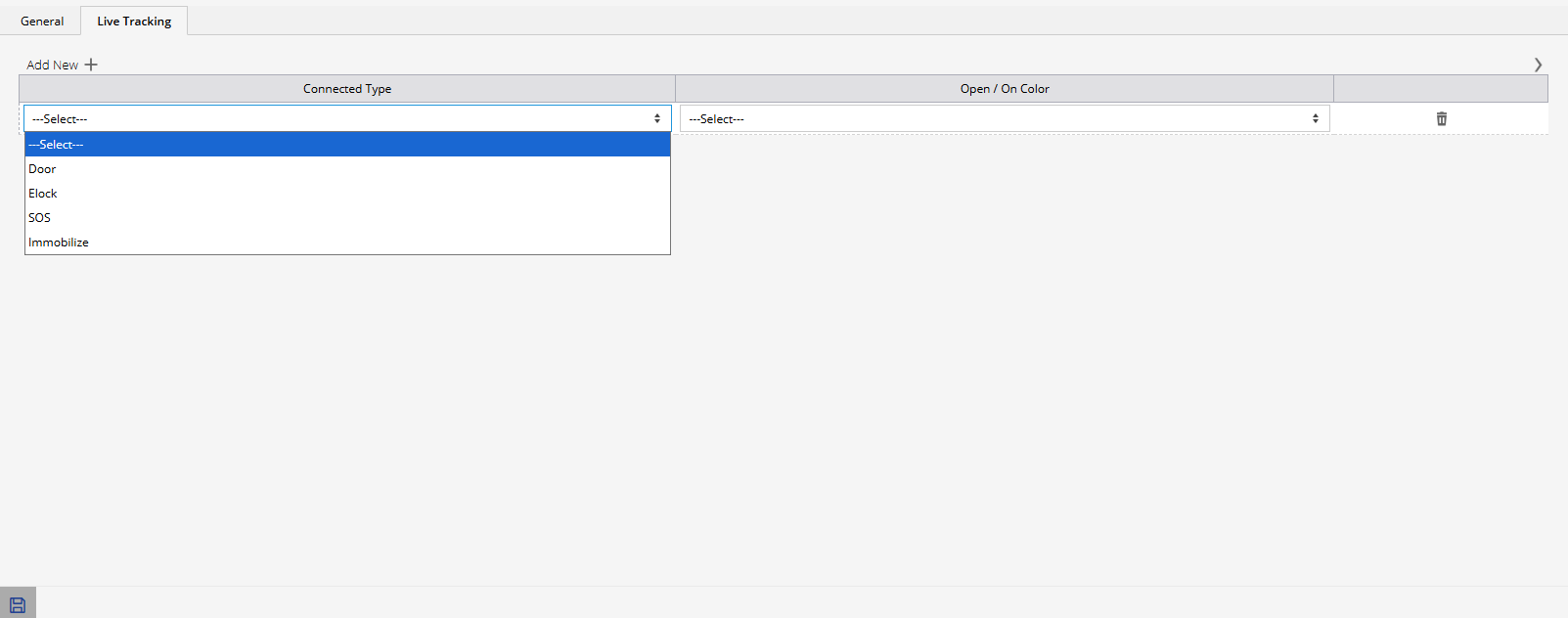
- Select Add New for adding a connected type.
- Select a Connected Type from dropdown.
- Then select Color for indicating when its on.
- Click on Save 💾 icon.