
The Data Access screen is part of the system's settings module, which allows Manufacturers to customize data access and other preferences for Dealers.
To Get Started
- Login to your account.
- Go to Settings > General > Dealer
- Double-click on the account for which you want to provide data access rights.
- Navigate to the Data Access tab.
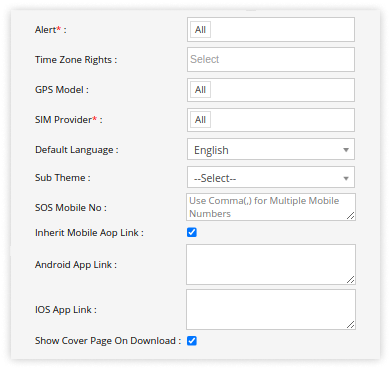
- In the Alert field, you can choose the specific alerts that you want the Dealer to access. This will enable the Dealer to create alerts based on the rights you have granted.
- Dealers can be granted Multiple Time Zone Rights, allowing them to manage various Vehicle Owner accounts operating in different time zones.
- In the GPS Model field, choose the specific GPS model for which you wish to grant access rights to the Dealer user. The Dealer will only have the ability to add the selected device models.
- You can select the Sim Provider from the drop-down menu for which you wish to grant access rights to the Dealer user. The Dealer will only have the ability to add the selected Sim providers while adding objects.
- Select the Default Language from the drop-down list. This will be the language in which the Dealer will have the analytics within the system.
- Manufacturers can assign customized themes to Dealers by selecting Sub-Themes from the provided drop-down. If no sub-theme is assigned, the system automatically applies the default theme set on the Manufacturer for Dealer account.
- In the SOS Mobile No field, enter the mobile number where you want the alert to be sent. To specify multiple mobile numbers, separate them with commas.
Please Note: SOS Alert configuration and SMS Configuration are required to send the SOS Alert on Mobile no.
- Dealer user can Inherit Mobile App Link from Manufacturer account by selecting the provided checkbox.
- In the Android App link field, add the link to the associated android application. This link will appear at the bottom of the Left Navigation panel after the user logs in.
- In IOS App link field add the link to the associated IOS application. This link will appear at the bottom of the Left Navigation panel after the user logs in.
- If you want to have the cover page (Title Page) when you download the reports then click on the checkbox to enable Show Cover Page on Download.
- Click on the Save 💾 icon.