
This document provides a step-by-step guide on how to create and manage a new Dealer account.
To Get Started
- Log in to your Super Manufacturer account.
- Go to Settings > General > Dealer.
- Click on the ➕ icon on the taskbar below.
To Create a Dealer Account
Navigate to My Account
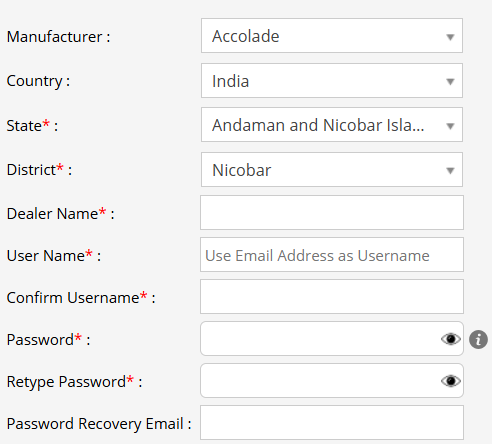
- Select the Manufacturer from dropdown menu.
- Select the Country from the drop-down menu.
- Select the State from the drop-down menu.
- Add a Short Name for the Dealer.
- Add a User Name for the Dealer. Use an email address as a user name.
- Confirm the User Name by entering it again.
- Add a Password for Reseller account.
- Retype the Password.
Please Note:
- Password must be of at least 8 characters.
- Password must contain at least one uppercase character (A-Z), one lowercase character (a-z), and one digit (0-9) and special characters from (!,@,#,$,%,&,*,?).
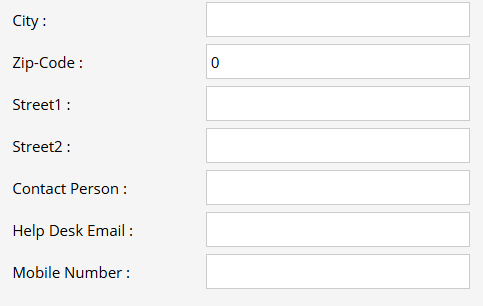
- Enter Address details like City, Zip code, Street1, Street2 etc.
- You can easily upload a Logo for reseller.
- Enter the Contact person details.
- Enter Helpdesk email address.
- Enter the Mobile Number.
Navigate to Rule
Learn how the Super Manufacturer or Manufacturer can Create a New Rule for their Dealers according to their customized requirement.
Navigate to User Setting
The User Settings section in the Reseller account enables users to customize their preferences according to their specific needs for various platform features.
- Enter the preferred Time Zone from the predefined options. The chosen timezone will be utilized to present analytics for the reseller account within the application.
- You can edit Date and Time format.
- Select the Week Start Day. The application will produce weekly reports based on the start day of the week that has been configured on your reseller account.
- Choose the User Status to determine the current state of the user's account. This setting allows you to activate or deactivate the account, controlling the user access as needed.
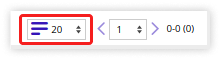
- Show Default Filter Option: You can turn on/off the "Records per page" drop-down being displayed on the bottom right of all the screens on the platform.
- Report Filter based on: You can configure if the Object selection list in filter should load based on Object Name or IMEI or VIN/Chassis No.
- Select the checkbox if you want to Show Watermark on the reports while you export them in the provided formats.
- Smooth Live Tracking: Select the checkbox if you wish to provide the smooth live tracking feature.
Please Note: When Smooth Live Tracking is enabled, the live tracking data will be delayed by 2 minutes. This is because the server collects data packets for 2 minutes before displaying them on the live tracking screen.
- Generate API Access Code and add it.
- Select the checkbox for enabling the Show Country Border and select Disputed Region.
Please Note: When you enable Show Border, country borders will be visible on the map. For disputed regions, the border of the selected country will appear bolder than those of other countries.
- You can restrict the user to change the password for their account by selecting Restrict Change Password option.
- Forcefully First Login Password Change: By selecting this option, you can set the condition for the user to change the password for their account when they logs into the account for for the first time.
- If you want to grant vehicle Immobilization rights to the user then select the provided checkbox.
- Immobilization via parking mode: If this option is enabled, the vehicle will be immobilized if an unauthorized person attempts to move it while it is in parking mode. (Note: The Immobilization sensor port must be configured on the object.)
- Select the checkbox for enabling the Door access.
Please Note: When Door option is selected the use will get an button to lock/unlock vehicle door on the object tooltip widget.
- Select the checkbox for enabling the Web Access and Mobile Access as per the requirement.
- By enabling the Single Mode Login feature, you can restrict the user's access to a single platform-either web or mobile. This means that if the user is logged in on one device, they will not be able to access their account from another device simultaneously, enhancing security by ensuring only one active session at a time.
- By selecting the Customisation Privileges checkbox, you allow the reseller to customize the user interface of the platform, enhancing their branding and user experience.
- By enabling the Upload logo checkbox the reseller can upload their brand logo into their account.
- Upload Object Logo: This will give the rights to upload the logo to the object.
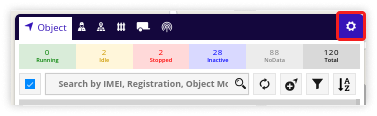
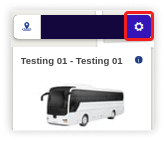
- You can grant the reseller users to utilize the Object List Settings and Object Tooltip Settings available on the Tracking screen by selecting the corresponding checkbox.
- Object List Setting:
- Object Tooltip Settings:
- Object List Setting:
- Enable the checkbox to make the Installation Date mandatory for the reseller account. This ensures the Installation Date field is required when adding a vehicle under that reseller. The field will be available in the Profile tab of the Vehicle module.
Navigate to Screen Access
Screen Access allows the granting or restriction of access to specific screens or modules based on user roles and permissions, ensuring users view only the sections relevant to their responsibilities and enhancing security and efficiency.
Navigate to Data Access
Admins can grant resellers specific Data Access permissions for customized features based on their preferences.
Navigate to Map
Setting up the map as per the requirement can provide a great experience for tracking the fleets live.
Learn how to Setup Map Configuration.
Navigate to Email
Email configuration can be configured to send alerts directly to users' email addresses from the system.
Learn how to Setup Email Configuration
Navigate to SMS
The system provides the option to configure an SMS service that delivers alert notifications directly to users' mobile phones.
Learn how to Setup SMS Configuration
Navigate to Payment Gateway
A payment gateway serves as a portal to facilitate transaction flow between customers and merchants.
Learn how to Add Payment Gateway
Navigate to Rename Label
Rename Label will be used by resellers to customize the platform by replacing the default feature labels with names of their choice.
To rename a label,
- Click on Add New, enter the existing label name, and input the desired new name in the provided textbox.

Navigate to IVR
Interactive Voice Response (IVR) service provides the user with the facility to send alerts via calls.
Learn how to Configure IVR Service
Navigate to ChatBot
A chatbot is a software application designed to simulate human conversation, allowing users to interact via text or voice.
Learn how to Configure ChatBot
Navigate to Social Media API
The Social Media API (Application Programming Interface) is seamlessly integrated into the software, allowing users to receive alerts, reports, and announcements directly through their chosen social media platforms.
Learn how to configure a Social Media API
Navigate to Documents
Documents are included in the software so that the reseller can upload the necessary documents on the platform and can easily access them from the platform itself.
Learn how to configure a Documents
Navigate to Authentication
The authentication tab in the software is to enhance security and ensure that critical actions, such as making announcements, are performed only by authorized users.
Learn how to configure Authentication
Navigate to SSO (Single Sign On)
The SSO functionality will allow users to authenticate using their existing credentials from a third-party identity provider, such as Google, Microsoft, or other supported SSO systems.
Learn how to configure SSO
- Click on the Save 💾 icon.